
 Video Game Blog
June 09, 2019
Made pretty good strides in getting the Map Linker set up. Here's a sequence of screen shots showing the steps through to where I'm currently at.
Step 0: Currently in the Game Editor
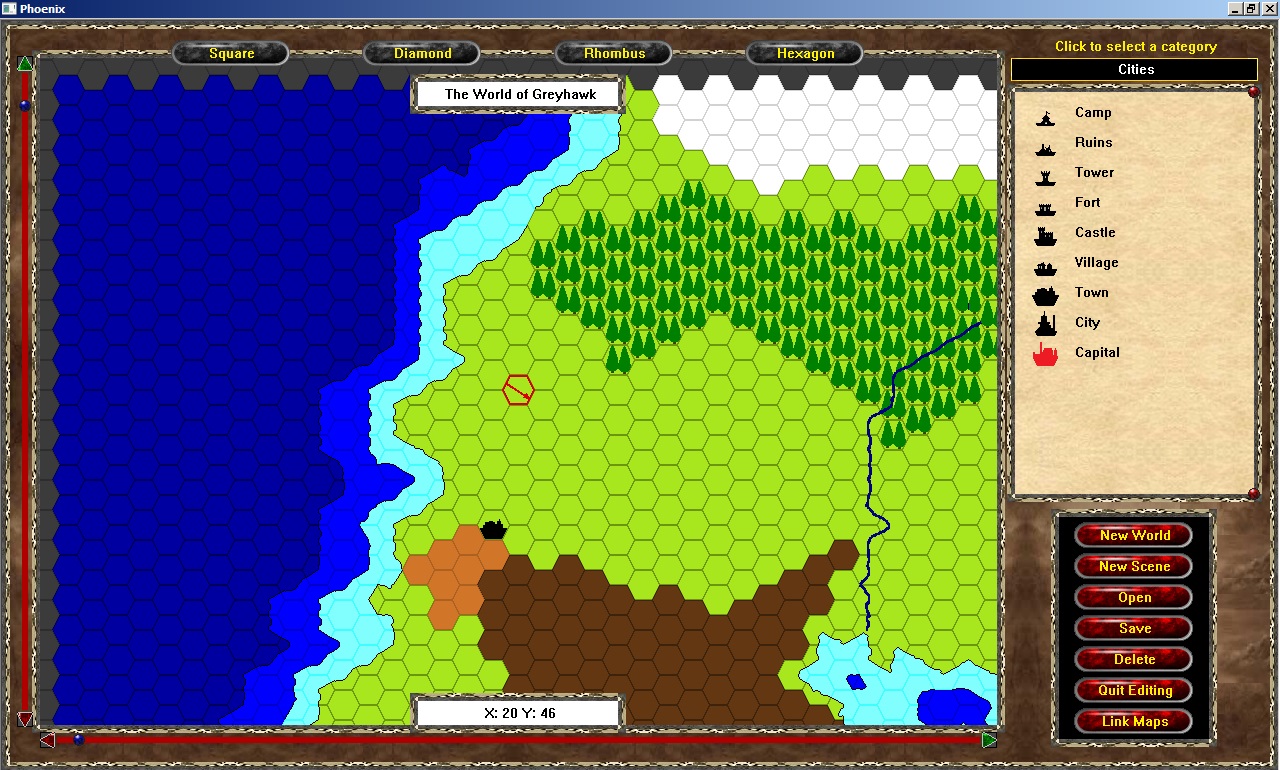
Step 1: After clicking on the Link Maps command button
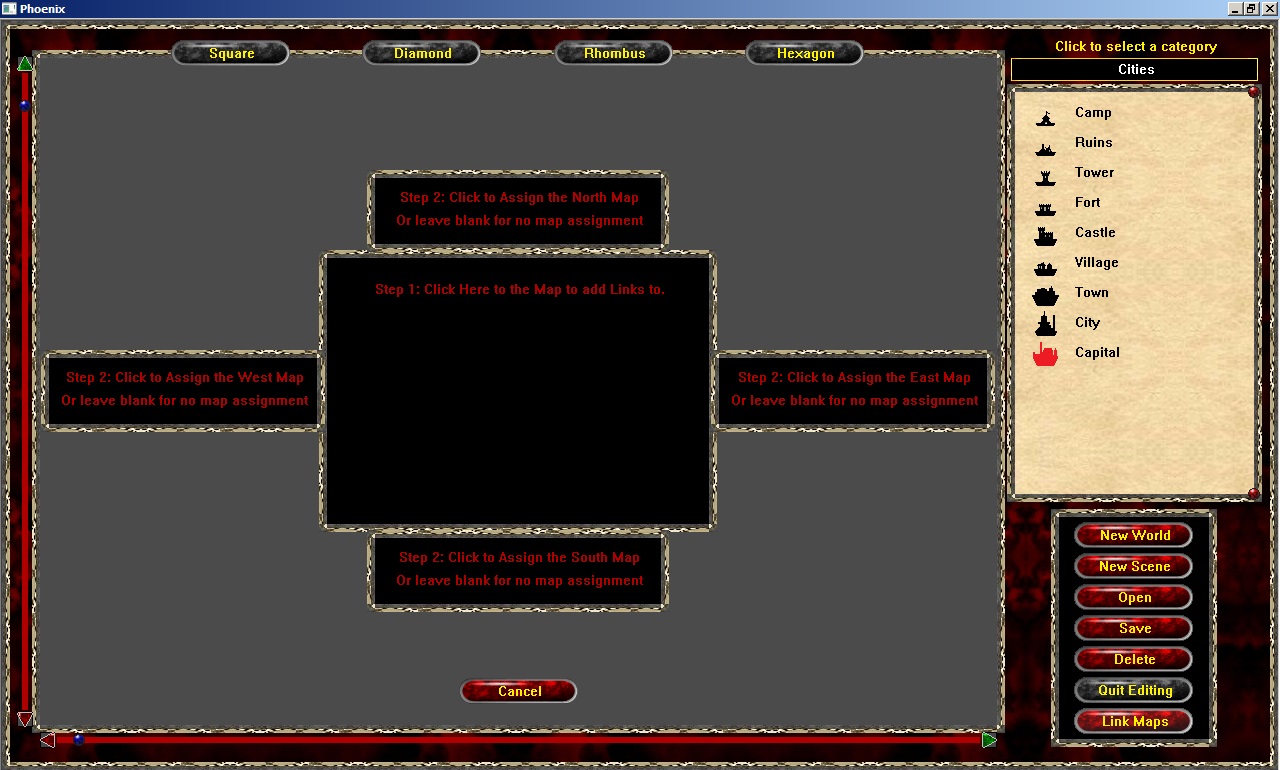
Step 2: After clicking the center black field in the screen (notice at the top that the "World" button has yellow field behind it). The list of available World Maps to select from is listed.
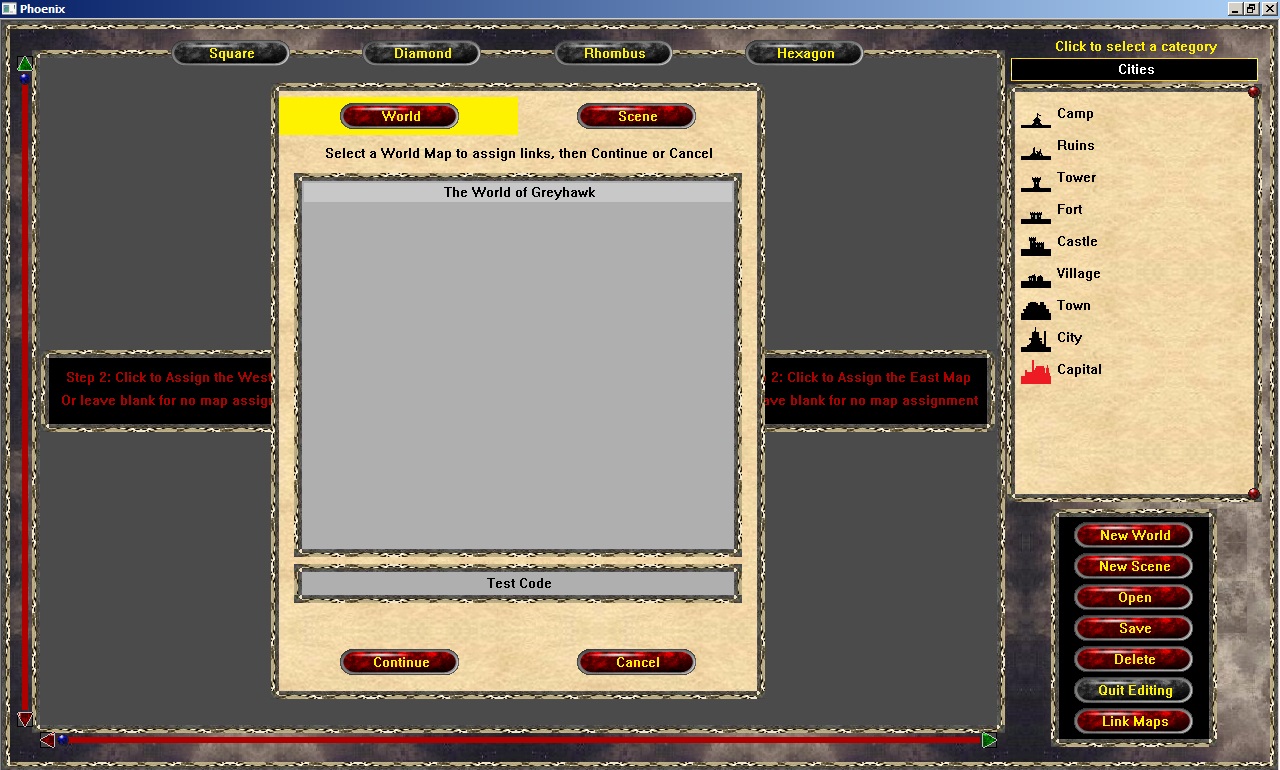
Step 3: After clicking on the Scene button (yellow field moves). The list of available Scenes is listed.
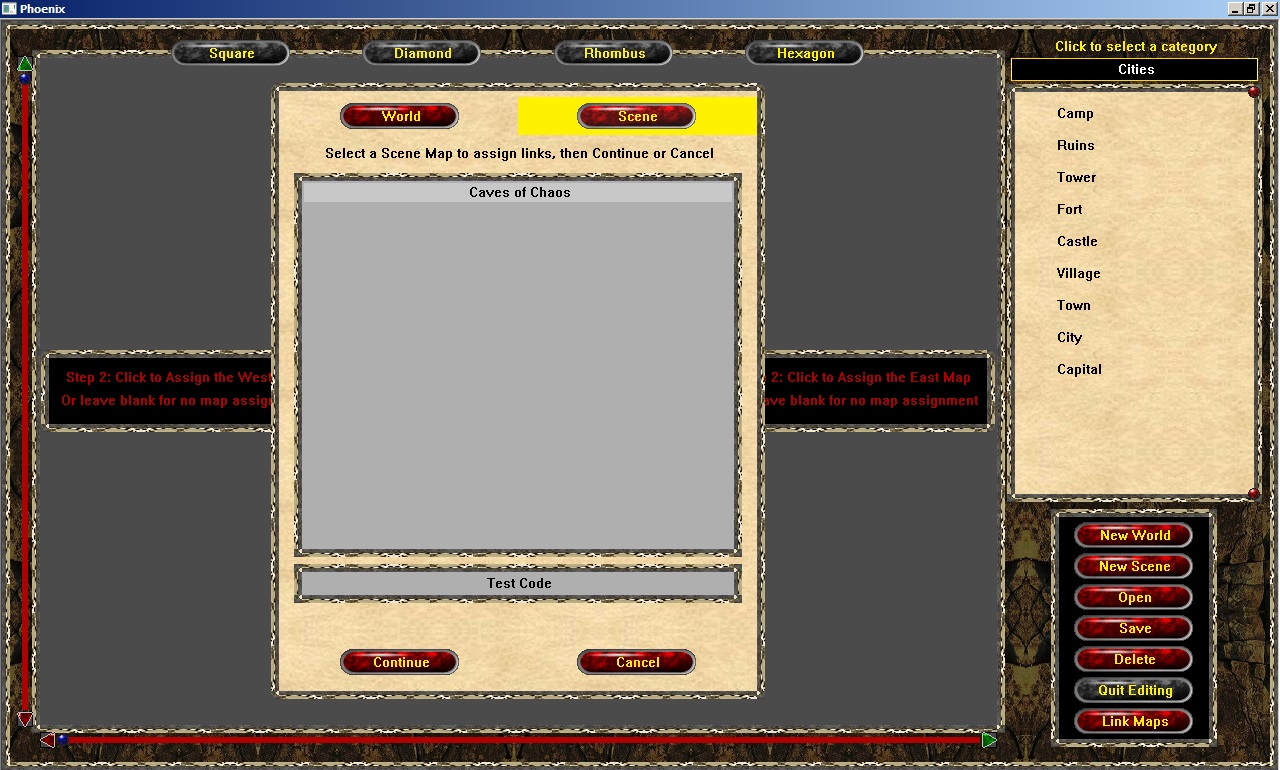
Like when opening a map file to edit, when a User clicks on a name, it will appear at the bottom where it currently says "Test Code".
At this point, I have to make the list of Maps 'active' to be selectable. Then the Continue button will need the code to move on to the next phase.
Later...
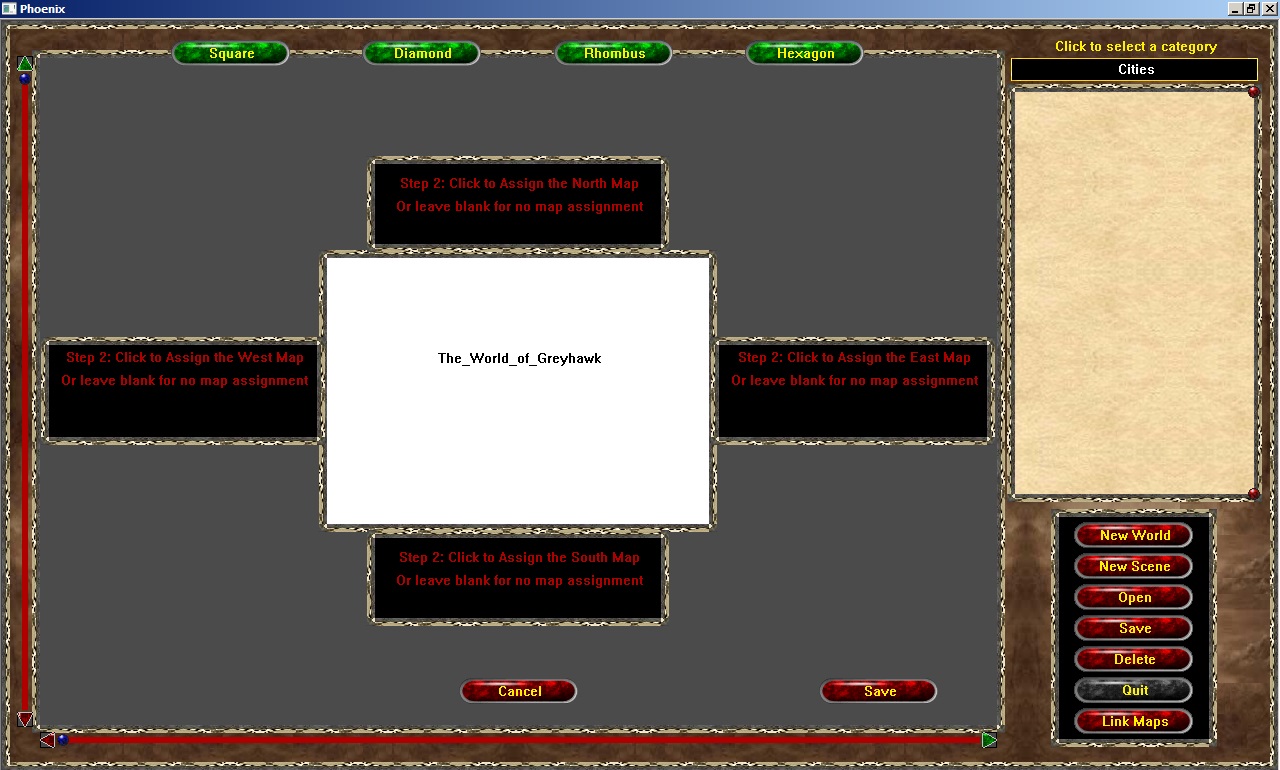
The Map Selection for each section is completed. For now, it's not pretty...but
at least User's are informed what is currently active. You will note that a
"Save" button appears in the corner of the area. When pressed, the program will
ask the User if they want to assign "In Map Destinations" - which are points that
will lead to maps that are considered either "in" the map (aka, Cities, Dungeons,
etc), or elevation changes within Scene Maps.